Pinterest Marketing Automation: How I Reached 609K Monthly Views
About six weeks into working on my Pinterest account, I checked my profile and saw 609K monthly views. By then, with the publishing workflow in place and content prepared, I was spending about one minute a day on the routine.
The tools I use are Codex + Cloudl. Codex orchestrates the workflow and calls Cloudl to carry out browser actions through my logged-in Chrome session. Cloudl is the command-line tool linked to jyjyxt/cloudownloader on GitHub.
This saves me from repeating the same browser steps every day. Once the content is ready, I mostly need to check what is going out next and whether it published correctly.
I use automation to publish prepared Pins and record the results. I still need to choose topics, prepare useful images, and decide what to improve.
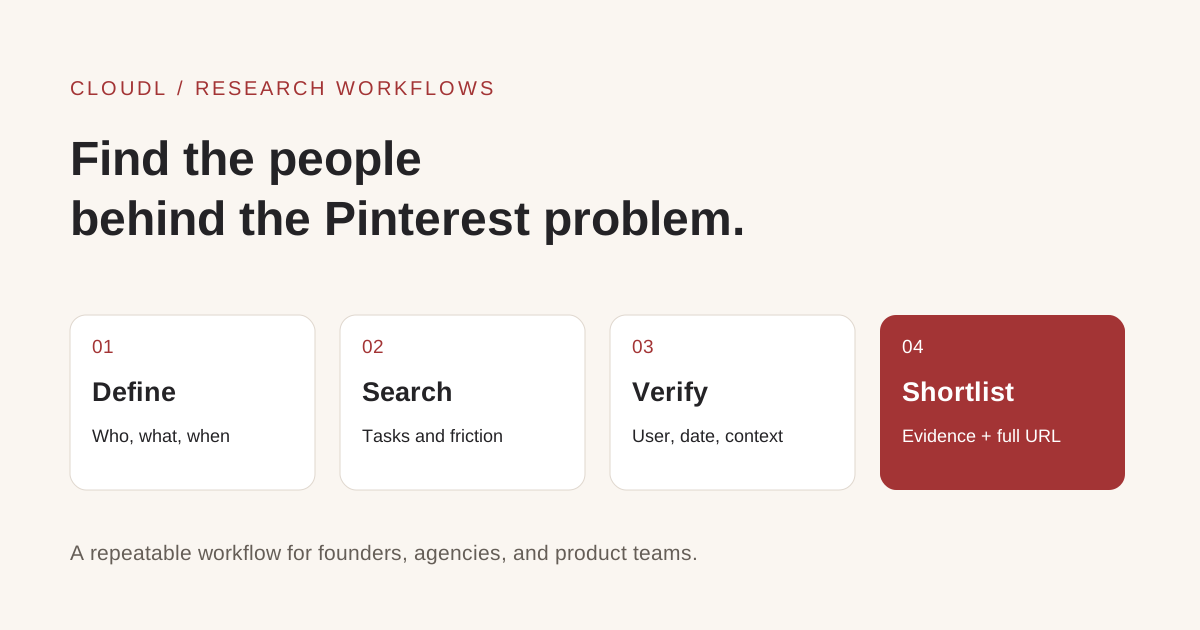
I'll show the result, explain what the one-minute figure means, and walk through the Pinterest publishing workflow and multiple-account setup. The installation guide and connection check follow, along with an optional X publishing test.
The result: 609K monthly views, with seven followers
Here is the account at the time of the screenshot:
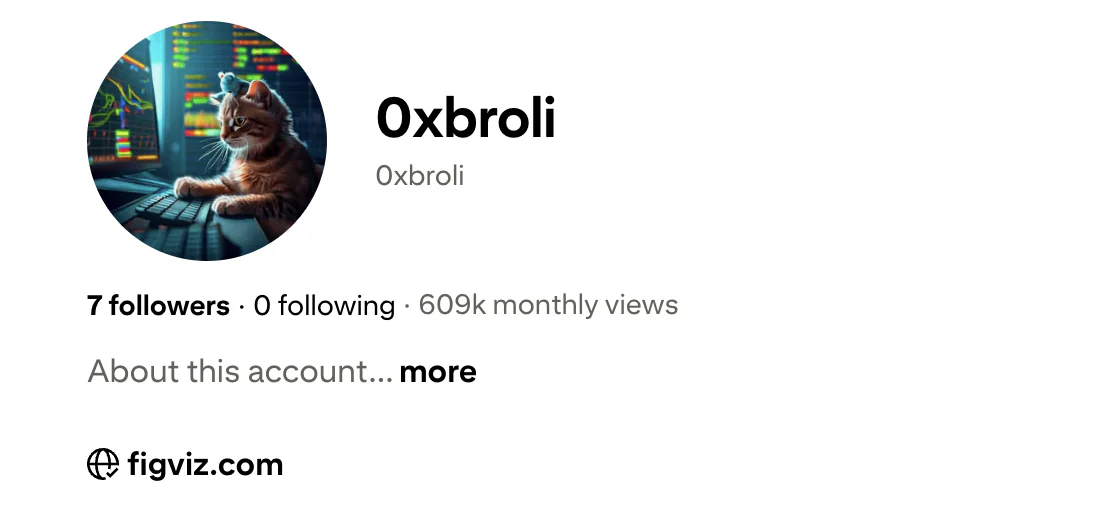
My Pinterest profile showing 609K monthly views after roughly six weeks of account building.
| Item | Result |
|---|---|
| Time spent building the account | About a month and a half |
| Typical daily involvement | About one minute |
| Monthly views shown on the profile | 609K |
| Followers shown on the profile | 7 |
| Following | 0 |
| Website linked on the profile | figviz.com |
What surprised me most was seeing that number with just seven followers. My Pins were getting seen even though very few people followed the account.
I was happy to see 609K monthly views, but I still need to look at outbound clicks and website analytics to understand how many visits those views bring to my site. Views aren't unique visitors, either. I refer to Pinterest's analytics guide for the differences between impressions, audience, saves, and outbound clicks.
For now, I'm encouraged that the Pins are reaching people. I still have more to learn about how that attention translates into traffic and revenue.
What “about one minute a day” actually means
I didn't start out spending just one minute a day. Installing the tools and building the workflow took time, and preparing content is still a separate job. The one minute is what I spend on the daily routine once those pieces are ready.
There is also a difference between my time and the computer's time. Uploading an image and waiting for a browser confirmation can take longer than the time I spend initiating or reviewing the task.
My routine comes down to this:
Prepare the content, let the workflow handle the browser steps, and review the outcome.
During that daily check, I focus on two things: which prepared item should run next, and did the previous item publish correctly? Preparing images, revising the workflow, and investigating failures take more time, so I handle those separately.
I don't know how quickly another account would grow, but I can share the setup and steps so you can try the workflow with your own content.
Build your Pinterest marketing automation workflow
This walkthrough assumes Cloudl is installed and connected to Chrome. If you are starting fresh, complete the installation guide and connection check below, then return here.
I've put together the examples below using Cloudl v1.8.10's command help. Replace the example username, board, image, and destination with your own values.
Check the account and boards
Discover the available commands first:
cloudl pinterest --help
cloudl pinterest create-pin --help
Then inspect your public profile and boards:
cloudl pinterest user YOUR_PINTEREST_USERNAME
cloudl pinterest user-boards YOUR_PINTEREST_USERNAME --limit 20
Confirm in Chrome that the logged-in account is the account you intend to publish through. Looking up a public username does not switch your login session.
Publish one prepared Pin
Prepare an image, a title, a description, the exact board name, and an appropriate destination link. Use an image you created or have permission to publish.
For example:
cloudl pinterest create-pin \
  --image "/absolute/path/to/your-pin.webp" \
  --board "Your Existing Board" \
  --title "A clear title describing your visual" \
  --description "Explain what readers will find and why it is useful." \
  --link "https://your-site.example/relevant-page" \
  --alt-text "Describe the main content of the image." \
  -f json
--image takes a local file. --board takes a board name. --link supplies the destination, and --alt-text is used when Pinterest exposes that field. JSON output makes the returned status, board, title, and URL easier for another program to read.
Open the returned Pin URL and check the image, text, board, and destination link. You can also inspect recent Pins:
cloudl pinterest user-pins YOUR_PINTEREST_USERNAME --limit 5
If publishing times out, check the account before retrying. The browser may have completed the action even if the command did not receive its confirmation.
Turn one successful run into a daily routine
Once the individual command works, prepare a small queue. Each item needs enough information to publish without another round of research:
| Field | What to store |
|---|---|
| Account/profile | Which Chrome profile should run the task |
| Image | An existing local file path |
| Board | The intended destination board |
| Title and description | Finished copy |
| Destination | The relevant page URL |
| Status | Pending, published, or needs review |
| Result | Published Pin URL or failure details |
The execution sequence can stay straightforward: read the next prepared item, publish it, capture the result, and update its status. A failed item should remain visible for review rather than silently disappearing from the queue.
In my setup, Codex runs the workflow through Cloudl. Cloudl documents this browser skill installation:
npx skills add jyjyxt/cloudownloader --skill cloudl-browser
An example task instruction for Codex is:
Use Cloudl with the Pinterest profile specified in my queue.
Take the next prepared item and verify that its image file exists.
Publish it to the specified board using its saved title,
description, alt text, and destination URL.
Record the returned Pin URL and update the item's status.
If publishing fails or the result is uncertain, report it and stop.
Installing a skill alone does not create a queue or a schedule. Those belong in your script, task runner, or agent setup. Establish the single-item workflow first; then choose how to trigger it daily.
With those pieces in place, I can keep my daily check short: review the prepared item, start or inspect the run, and look at the result. I still set aside time for content preparation and maintenance.
Expand the workflow to multiple accounts
Cloudl supports selecting among connected Chrome profiles. A useful arrangement is one profile per account, with the Browser Bridge installed and enabled in each.
List the connected profiles:
cloudl profile list
Assign memorable aliases using the IDs returned by that command:
cloudl profile rename YOUR_FIRST_CONTEXT_ID pinterest-main
cloudl profile rename YOUR_SECOND_CONTEXT_ID pinterest-second
Optionally set a default:
cloudl profile use pinterest-main
For repeatable jobs, specify the profile in the command itself:
cloudl --profile pinterest-main pinterest create-pin \
  --image "/absolute/path/to/main-account-pin.webp" \
  --board "Main Account Board" \
  --title "A title for the main account" \
  --description "Copy prepared for this account's audience." \
  --link "https://your-site.example/main-page" \
  -f json
Use --profile pinterest-second and that account's content and board for the second workflow. The alias selects a Chrome context; it does not create a Pinterest account or log you in automatically.
I'd keep each account's queue and results separate and test one Pin per profile before adding more tasks. If I expand to more accounts, I'll also need more time to prepare content and review what gets published.
How Cloudl connects the terminal to the browser
Cloudl's browser automation uses three pieces:
- The CLI: the
cloudlcommand you run in a terminal. - A local daemon: the process that passes requests between the CLI and browser.
- The Browser Bridge extension: the Chrome extension that carries out browser operations.
The connection looks like this:
        Codex
          |
          v
      Cloudl CLI
          |
          v
     Local daemon
          |
          v
Browser Bridge in a Chrome profile
          |
          v
 Logged-in Pinterest or X account
That Chrome profile is important: its login session determines which account the browser can operate. Keep the intended profile open and log in to the relevant website before testing.
Install Cloudl from start to finish
I tested with Cloudl v1.8.10 and used its bundled documentation to put together these installation steps. You can find the linked source repository on GitHub.
1. Check the prerequisites
You need Node.js, npm, Git, and Chrome or a compatible Chromium browser. Cloudl v1.8.10 declares Node.js 20.18.1 or newer as its minimum; my test used v24.15.0. For a fresh setup, get a supported LTS release from the official Node.js download page.
Open a terminal and check:
node --version
npm --version
git --version
Each command should print a version. If one is missing, install it and reopen the terminal before continuing.
2. Clone the source
git clone https://github.com/jyjyxt/cloudownloader.git
cd cloudownloader
Before installing, check which package directory you are in:
node -p 'JSON.stringify({name: require("./package.json").name, bin: require("./package.json").bin}, null, 2)'
The CLI package should declare a cloudl executable in bin. The bundled documentation also describes a website workspace layout where the CLI is inside cloudl/. If your checkout has that layout, change into it first:
cd cloudl
Run the package check again there. If the checkout contains only the Next.js downloader website and no CLI package, it is not sufficient for this tutorial: obtain the CLI source revision described by the repository documentation before continuing. Installing the website package alone will not create a cloudl command.
3. Install dependencies and link the command
From the CLI package directory:
npm install
npm link
cloudl --version
cloudl --help
The documented source setup builds the CLI through the package's prepare script during installation. npm link makes the executable available in your current Node.js environment.
Keep that source directory in place because the linked command points to it. If you switch Node.js installations or move the checkout, you may need to run npm link again.
I'm using source installation because I couldn't find @jyjyxt/[email protected] on the public npm registry when putting this guide together; it returned “Not Found.”
4. Install the Browser Bridge extension
The simplest documented option is the prebuilt extension:
- Open the repository's Releases page.
- Download the available
cloudl-extension-v{version}.zipasset. - Extract it into a permanent folder.
- Open
chrome://extensionsin the Chrome profile you will use. - Enable Developer mode.
- Click Load unpacked.
- Select the extracted folder containing
manifest.json.
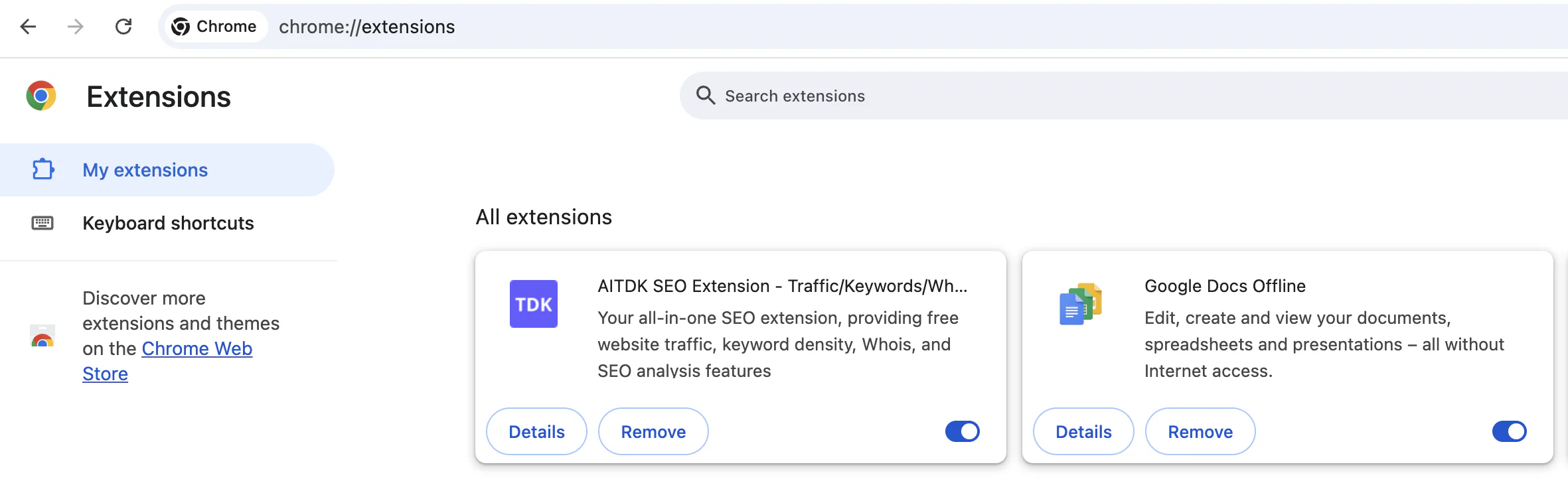
This is where you load the Browser Bridge: enable Developer mode, then click Load unpacked.
If you are building the extension from source instead, run these commands from the CLI source directory that contains extension/:
npm --prefix extension install
npm --prefix extension run build
Then load the extension/ directory in Chrome. That folder contains manifest.json; do not select extension/dist/.
The CLI build and extension build are separate. After changing extension code, rebuild it and click Reload on its card in Chrome. Keep the loaded folder in place because Chrome continues reading it.
5. Open the accounts you intend to use
In that same Chrome profile, log in to Pinterest. If you want to run the optional X test below, log in to X as well.
Keep Chrome running. The local daemon starts automatically when needed, so the next step is to check the connection.
Check the connection with cloudl doctor
Run:
cloudl doctor
Here is the output from my setup:
cloudl v1.8.10 doctor (node v24.15.0)

[OK] Daemon: running on port 19825 (v1.8.10)
[OK] Extension: connected (v1.0.24)

Profiles:
  • jfgbw7qd: connected v1.0.24
[OK] Connectivity: connected in 0.0s

Everything looks good!
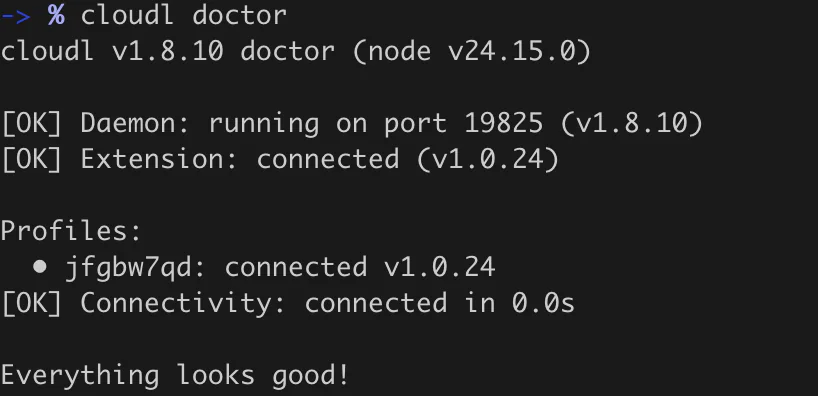
My setup with the daemon running and Browser Bridge connected.
The daemon line confirms that the local process is running. The extension line confirms that Chrome has connected. The profile entry identifies the browser context available to Cloudl.
Your versions and profile ID may differ. Look for a healthy connection, then check your Pinterest login and try publishing one Pin.
If the extension is disconnected, verify that it is enabled in the open Chrome profile. If the daemon needs attention, inspect and restart it:
cloudl daemon status
cloudl daemon restart
cloudl doctor
Optional: test publishing on X
I used a short text post to test an actual publishing action:
cloudl twitter post 'Testing Cloudl: Publish directly to X from the terminal 🚀'
This command publishes a real post to the X account logged in through the selected profile. The adapter is named twitter, even though the platform is now called X.
The terminal returned success, together with the text, post ID, and URL:

The command reported success in about 5.8 seconds.
I also checked the result on X:
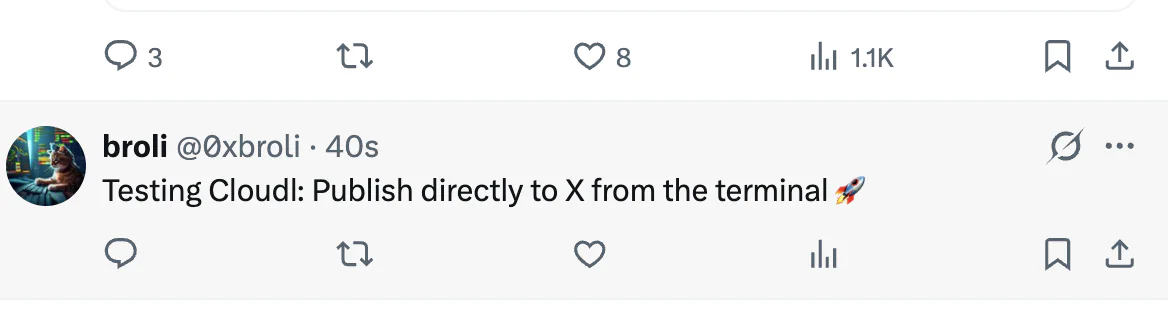
My test post as it appeared on X.
Seeing the success message was useful, but I also wanted to open the post and make sure it looked right. I'd do the same for any new publishing workflow: save the returned URL and check the result before adding more tasks.
That was my quick publishing test on X. To try it with a Pin, follow the Pinterest workflow above.
Maintenance and common problems
For a source installation, update from the existing checkout using the documented sequence:
git pull --ff-only
npm install
cloudl --version
cloudl doctor
Run the npm commands in the CLI package directory. A manually loaded extension needs its own update and Chrome reload when an extension release is required.
| Symptom | What to check |
|---|---|
cloudl: command not found | Run npm link in the CLI package using your active Node.js installation. |
| Extension disconnected | Open the correct Chrome profile and enable the Browser Bridge. |
| Login or authorization error | Log in again on the target website in that profile. |
| Wrong account used | Check the profile's actual login and pass --profile explicitly. |
| Image or board failure | Verify the local file and exact board name. |
| Publish result uncertain | Inspect recent posts before repeating the write command. |
Frequently asked questions
Did the whole project take only one minute a day?
No. I spend about a minute on the daily routine now that the workflow is running. I spent longer setting it up, and I still need time to prepare content and fix problems.
Does 609K monthly views mean 609K people visited the website?
No. My profile showed 609K monthly views. To see how many people reached my site, I need to check outbound clicks and website analytics separately.
Do I need a large follower count first?
I had just seven followers when my profile reached 609K monthly views, so a large following wasn't necessary for me to start getting visibility.
Does cloudl doctor prove that Pinterest publishing works?
It checks the browser connection. You still need a Pinterest login and a successful Pinterest publishing test.
Does the X test publish immediately?
Yes. When I ran cloudl twitter post, it published straight to my logged-in X account. The post above is the result.
Can the same setup handle multiple accounts?
Yes, through connected Chrome profiles and explicit --profile selection. Each profile needs the appropriate website login and its own verified workflow.
Want to build something similar?
My account reached 609K monthly views in about a month and a half, with roughly one minute of daily involvement once the workflow was in place.
Start with the Cloudl repository, get cloudl doctor passing, and verify one real publishing action. From there, give Codex a small prepared queue, have it call Cloudl to execute the workflow, and make the results easy to review.
If you're experimenting with Pinterest, browser automation, or running several content accounts, I'd be happy to compare notes. Find me on X: @0xbroli.